TL;DR: I got a Windows 11 VM running with full GPU passthrough via Looking Glass on Arch Linux. Adobe products run well enough to be a real workflow, not quite bare metal, but usable. Clipboard and storage are shared, and the VM lives inside Hyprland at 144hz on a 1440p 165hz display. It’s been about a week. I think it’s working. This is not a tutorial. This is a report from the other side.
Here’s a quick demo walking through the setup in action (unmute for music): switching between Hyprland workspaces, editing this post, hopping into the Windows VM, and copying vector data between Adobe Illustrator in the VM and Inkscape on Linux.
hyprland linux desktop with quickshell bar and rofi menus for almost everything. built to be keyboard driven
Why
I can’t escape Adobe. I’ve tried.
My history with Photoshop starts on a used Pentium 200 my family had. I think it was version 4 that came installed on it. I remember when 5.5 came out, I was able to acquire it as a young lad, and that’s when I really hit the ground running. I was already building table-based HTML websites at that point (and pretty good at it, honestly), so having a real design tool was a big deal. I spent years building out pixel-perfect designs.
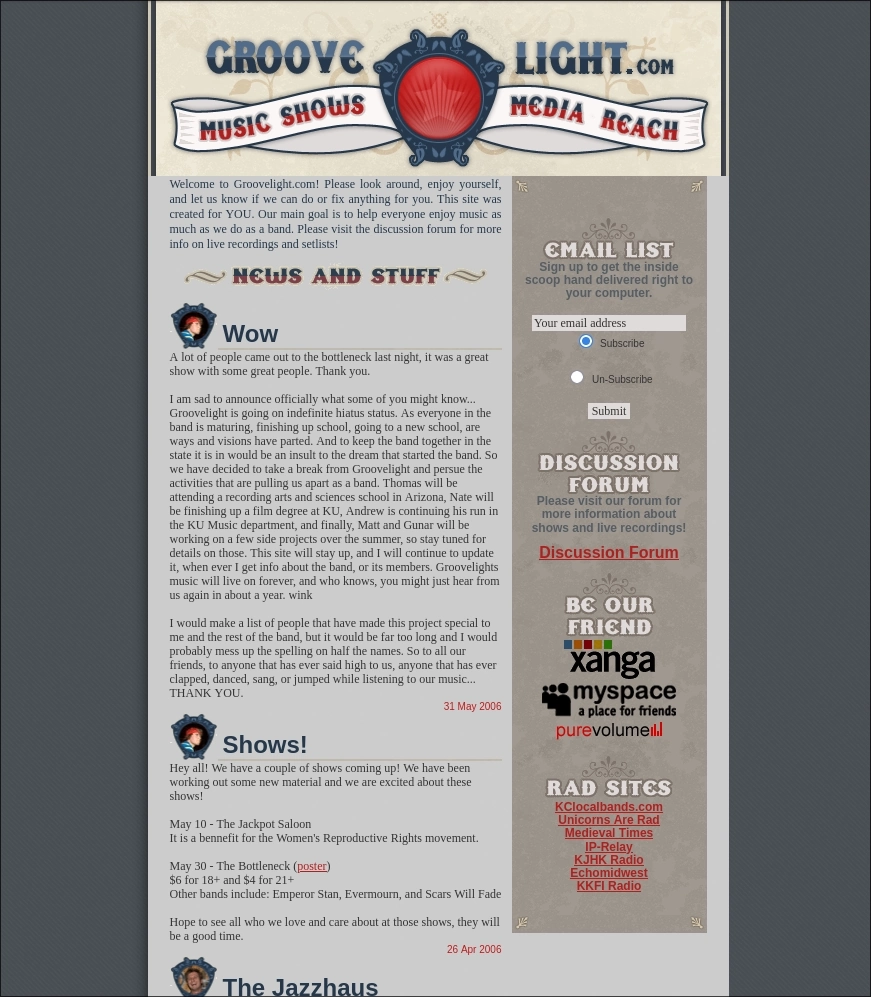
That’s a site I did in Photoshop for my old band around 2005. It was the last site I built that had zero CSS. Everything was sliced images in tables. Some textures are missing from the screenshot, but I’m impressed with how well archive.org captured it. Maybe because it was table-based there wasn’t much to break. I eventually worked as a full-time graphic designer who also did web dev, so I’ve put serious time into Illustrator, InDesign, After Effects, and Premiere too. I was the graphic designer for a music festival called Wakarusa, and also got to perform there, which was a good time all around.

I don’t even know of a real alternative to After Effects for motion work.
I gave GIMP an honest shot after the last major upgrade. I just don’t like it. Inkscape and Krita are both solid. Krita especially, since its mental model is much closer to Photoshop, which makes it easier to pick up. But I still have years of Photoshop and Illustrator files that I want to edit in the programs that made them. And when your muscle memory and your file library are both locked into one ecosystem, the switching cost isn’t just learning new software. It’s re-learning how you think about the work.
If you’ve been able to make the switch from Adobe to open source, I salute you.
The obvious answers don’t actually solve the problem. Dual booting means rebooting every time I need to do a quick image edit. A KVM switch between a Linux machine and a Windows machine is better, but you’re still context-switching between two airgapped systems, maybe even on the same monitor. And that’s what’s really been bothering me for years. It might sound like a nitpick, but breaking dev flow state to resize an image or tweak a logo kills the momentum. Having to reboot into another OS or switch to another machine snaps you out of whatever creative headspace you were in. By the time you’re back in your editor, you’ve lost the thread. I wanted Adobe to just be another window on my desktop.
So instead of fighting the “replace Adobe” battle, I decided to bring it to me.
The goal, at least in theory: run a Windows 11 VM with full GPU passthrough, fast enough to run Adobe products without wanting to throw my machine out a window, all while living inside my Hyprland desktop. No dual-booting. No separate machine. Whether it actually holds up as a daily workflow remains to be seen, but I got it running.
The Concept
For anyone unfamiliar with GPU passthrough and Looking Glass, here’s the short version.
In a typical VM setup, the virtual machine gets a software-emulated GPU. From everything I’ve read, that’s not going to cut it for GPU-accelerated workloads like Adobe products. I didn’t bother trying. I wanted to set this up once and as correctly as I could the first time. GPU passthrough solves this by handing a real, physical GPU directly to the VM. The VM talks to the GPU at bare metal speed because it is talking to real hardware. The hypervisor (QEMU/KVM in my case) just steps out of the way.
The problem: if you pass a GPU to a VM, the video output goes to that GPU’s physical ports. You’d need a separate monitor, or you’d need to switch inputs. It’s a different kind of switching than dual booting, but it still doesn’t feel virtual. You’re still breaking context to get to your VM.
Looking Glass fixes this. Here’s how it works:
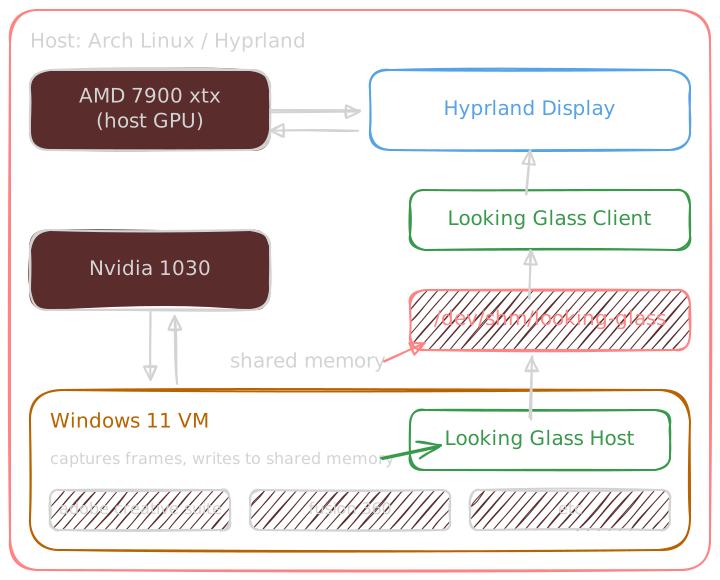
The GPU in the VM renders frames like it normally would. Full speed, no emulation. The Looking Glass host application captures those frames and writes them into a shared memory region. On the Linux side, the Looking Glass client reads that shared memory and displays it in a window. The result is a VM window running at what should be bare metal GPU performance. Mine runs at 144hz. The mouse, keyboard, and clipboard are shared through SPICE. So far, it feels seamless. I’ll see how that holds up over time.
The GPU Quest
Here’s where the story gets fun. Or expensive, depending on how you look at it.
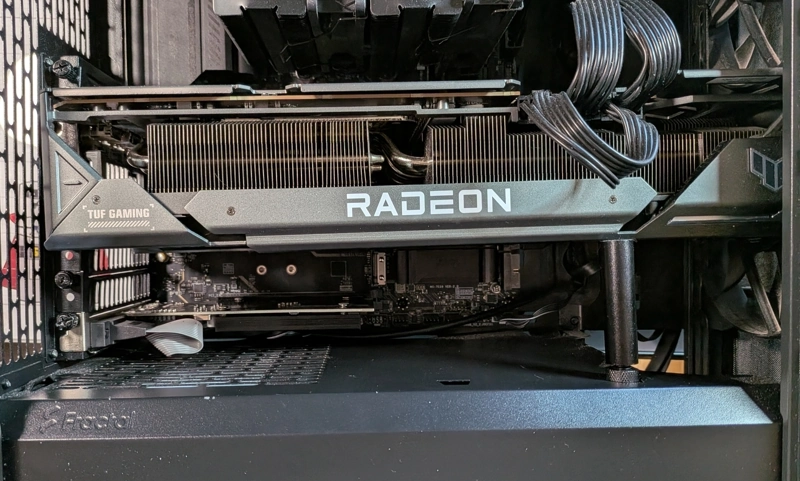
My main GPU is an AMD RX 7900 XTX. My motherboard layout and the sheer size of the 7900 XTX meant I had exactly one remaining PCIe slot available, and it needed to be a single-slot card. Not a lot of options in 2026.
This whole chapter could have been a single trip to Micro Center with some proper research. Instead it was multiple trips, because sometimes when I’m trying to finish a project I just start moving and figure it out along the way. This was one of those times.
I had a GT 6650 XT from an old build that I keep around as an emergency backup. My first thought was to just use that. But the PCIe pins on the card didn’t match up to the motherboard, which sparked a harebrained idea: what if I used a riser cable as a standoff to mount it somewhere else in the case? If I couldn’t fit it next to the 7900 XTX, maybe I could route it to an open spot. I went to Micro Center with this plan. Shoutout to the employee who entertained the idea. The cable physically couldn’t route to anywhere useful in my case, so that was a dead end.
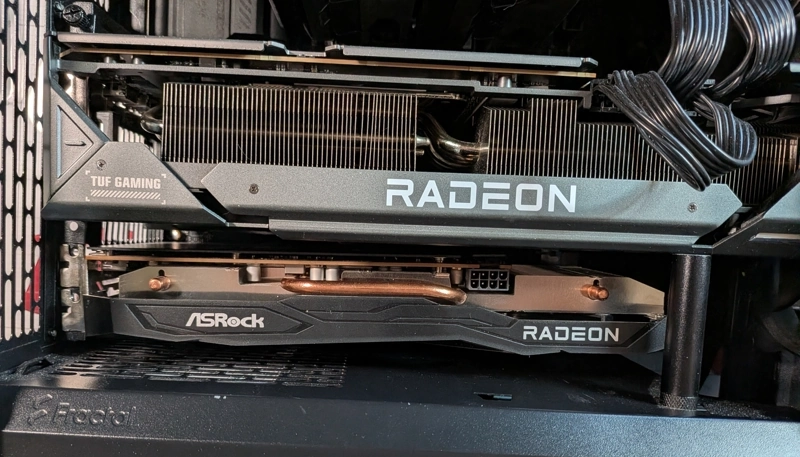
So I returned the riser cable and bought a GeForce GT 710 instead. Single slot, dirt cheap, and it fit.
Then I rebooted and my system wouldn’t boot. Drive not found error in GRUB. There’s a particular kind of panic that sets in when you add new hardware and your computer just stops working. Turns out the GT 710 was initializing faster than my AMD card and stealing the boot display, which confused GRUB. I had to add a line to the GRUB config to sort that out. Not a fun debugging session when you’re staring at an error that makes it look like your drives vanished.
Once that was sorted, I got the entire passthrough pipeline working: VFIO binding, VM configuration, Looking Glass, the whole thing. Proof of concept achieved. I was feeling good.
Then I tried to install Adobe products and hit a wall. The GT 710 technically reports DirectX 12 support, but it’s missing critical feature levels that Adobe actually requires. Close, but not close enough.
But I had proof that the setup worked. That was the important part. I ordered an NVIDIA GT 1030 with 4GB of RAM. Single slot, actually capable, and not much more expensive than the 710. The downside: I had to nuke the VM and start over. But I’d done it once, so I knew the shape of the path even if I didn’t remember every turn.
The Configuration Gauntlet
I’m not going to pretend this was straightforward. Getting everything working required:
- Switching to the Zen kernel (the stock kernel didn’t play nice with VFIO)
- Installing a collection of packages: QEMU, libvirt, virt-manager, OVMF, Looking Glass, and their various dependencies
- Configuring VFIO to grab the GT 1030 before the NVIDIA driver could claim it
- Setting up the VM with the right chipset (Q35), firmware (OVMF/UEFI), and virtio drivers
- Allocating shared memory for Looking Glass
- Quite a bit of XML editing in the libvirt domain config
I used Virtual Machine Manager for most of the configuration, but a lot of the important stuff ends up as XML in the libvirt domain definition. Here are some of the pieces that matter.
The VM gets 16GB of RAM and 12 vCPUs (6 cores, 2 threads, host-passthrough so Windows sees the real CPU). The memory backing has to be set to shared, or Looking Glass can’t access it:
<memory unit="KiB">16777216</memory>
<memoryBacking>
  <source type="memfd"/>
  <access mode="shared"/>
</memoryBacking>
<cpu mode="host-passthrough" check="none" migratable="on">
  <topology sockets="1" dies="1" clusters="1" cores="6" threads="2"/>
</cpu>
The GPU passthrough is two PCI hostdev entries, one for the GPU itself and one for its
audio device. Both live on bus 0x12 on my system:
<hostdev mode="subsystem" type="pci" managed="yes">
  <source>
    <address domain="0x0000" bus="0x12" slot="0x00" function="0x0"/>
  </source>
</hostdev>
<hostdev mode="subsystem" type="pci" managed="yes">
  <source>
    <address domain="0x0000" bus="0x12" slot="0x00" function="0x1"/>
  </source>
</hostdev>
The Looking Glass shared memory region. 64MB, presented to the VM as an ivshmem device:
<shmem name="looking-glass">
  <model type="ivshmem-plain"/>
  <size unit="M">64</size>
</shmem>
And the virtiofs mount that shares a directory between host and guest:
<filesystem type="mount" accessmode="passthrough">
  <driver type="virtiofs"/>
  <source dir="/home/stephen/shared"/>
  <target dir="shared"/>
</filesystem>
There’s also a whole block of Hyper-V enlightenments that help Windows perform better as a guest, and a TPM emulator so Windows 11 doesn’t complain during install. I configured most of this through Virtual Machine Manager’s GUI, but I ended up hand-editing the XML more than once.
Most of the trouble wasn’t on the Linux side, though. It was learning how to configure the VM properly from inside the VM itself. The right drivers, the right virtual hardware, the right settings. That’s where the hours went.
But the single hardest part of this whole project? The purgatory after Windows
installs. The basic VM works fine with the emulated QXL display. It’s when you start
setting up GPU passthrough and Looking Glass that things get complicated. No mouse, wrong
drivers, wrong monitor settings, keyboard-navigating through Windows panels, moving
invisible windows between monitors with Win + Shift + Arrow. I’ve fought display battles
before (Linux 5 kernel with Intel, Nvidia, and HDMI is why my main CPU and GPU are both
AMD now), but doing it through a VM was a new kind of miserable.
On top of that, EDID was its own battle. I needed to plug a cable from the monitor into the GT 1030, not to display anything, but so the GPU could read the monitor’s EDID and report a resolution and refresh rate that made sense. Without this, Windows defaults to garbage resolution because it has no idea what display it’s connected to.
I tried one of those HDMI EDID emulator dongles. Tiny adapter, no cable, just plug it into the GPU and it fakes a display signal. It worked, technically. But it capped the VM at 60fps and the whole experience felt terrible.
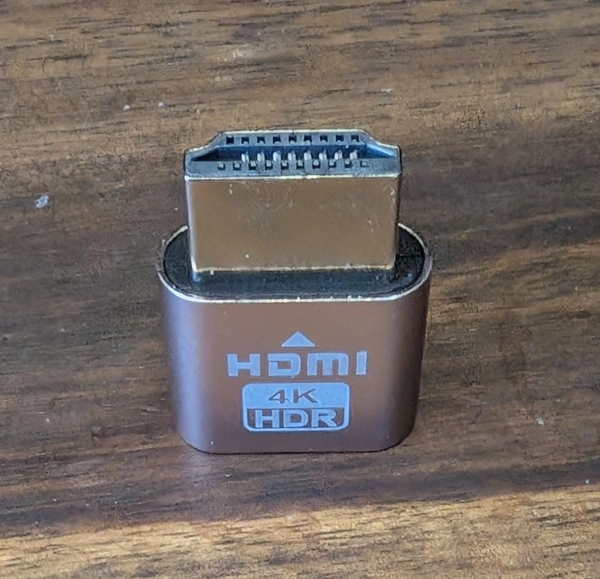
Plugging an actual HDMI cable from the GT 1030 into my monitor got it up to 144hz immediately. The monitor’s real EDID gave Windows the information it needed to match what Hyprland was already running at 1440p 165hz. The VM tops out at 144hz, but I can’t tell the difference in practice. Night and day compared to the dongle though. The dongle is getting returned if I didn’t throw away the packaging.
A couple more gotchas that cost me time:
- Looking Glass as a Windows service: Installing the Looking Glass host as a service instead of a regular application means you can see the Windows login screen. Without this, you get no video output until you somehow blindly log in and the host application starts. Not ideal.
- Disabling the default QXL display: If you leave the emulated QXL display device enabled alongside the passthrough GPU, Windows will render some settings panels and dialogs on the QXL display, which you can’t see in Looking Glass. You end up with invisible windows.
Note: Disable QXL last, after everything else is working.
The Hardware
Before getting into results, here’s what I’m working with:
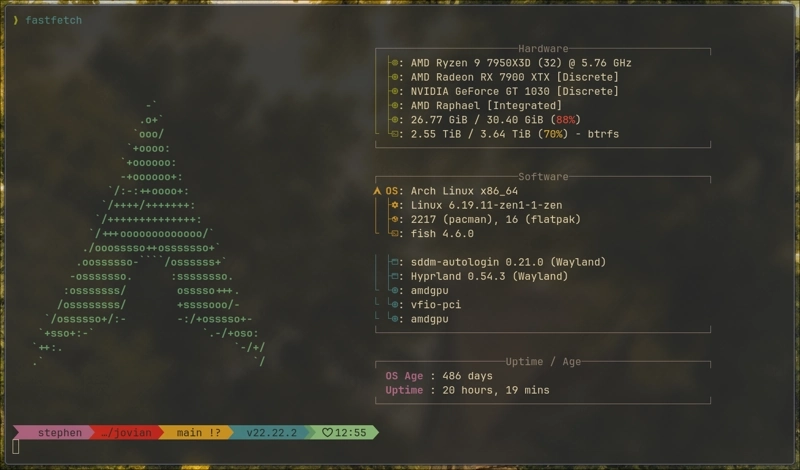
The VM gets 16GB of RAM (out of my total), 12 vCPUs (6 cores, 2 threads from my Ryzen), and the GT 1030 all to itself. That’s a pretty generous allocation, and I can feel it. The host doesn’t struggle, and the VM doesn’t feel starved. I’m fortunate to have the headroom for this kind of split, though more RAM would help. 16GB for the VM is livable but tight once you’ve got a few Adobe apps open alongside Windows itself. A RAM upgrade is probably next on the list.
The Result (So Far)
It works. Or at least, it appears to work. Adobe Photoshop, Illustrator, Premiere, After Effects, and the rest of the Creative Cloud suite all run. It’s not bare metal performance, you can feel the overhead, but it’s usable enough to be a real workflow. I haven’t done a heavy enough project in this setup yet to really stress test it, but early signs are good. The VM sits in its own Hyprland workspace, and switching to it is the same as switching to any other window. The mouse pointer moves seamlessly between the host and the VM, no grabbing or releasing, it just works like a second monitor. Clipboard sharing means I can copy text or file paths between Linux and Windows. Shared storage through virtio-fs means my project files are accessible from both sides. 144hz, no tearing, no lag so far.
Whether this setup survives contact with a real deadline and a 40-layer PSD is still an open question.
Would I Write a Tutorial?
No. Not yet. I’d need to tear this setup down and rebuild it multiple times before I’d trust myself to write instructions that someone else could follow without pulling their hair out. There are too many steps where I got it working through persistence and troubleshooting rather than understanding exactly why a particular setting mattered.
What I can say is: if you’re a Linux user who can’t fully escape Windows for specific applications, this might be the setup. It’s not simple to get running, and I honestly don’t know yet if it’ll hold up long term or if I’ll hit some dealbreaker I haven’t found yet. But right now, it’s better than dual-booting by a wide margin. One machine, one desktop, everything accessible.
Comments