Tested on Hyprland 0.53.3 on Arch Linux (January 2026 rolling release)
Why a Trackpad?
I’ve been fighting RSI for a while now, but in December I hit an absolute wall. There were days where I wasn’t sure I’d be able to type again. I took pretty drastic measures, including reducing my keyboard from 58 keys to 36 (currently using 34) to reduce wrist strain caused by flexing my wrists to reach key combos. I’m now fully convinced that a 34 or 36 key keyboard is not only completely doable, but actually the best way to type. More posts on that coming soon.
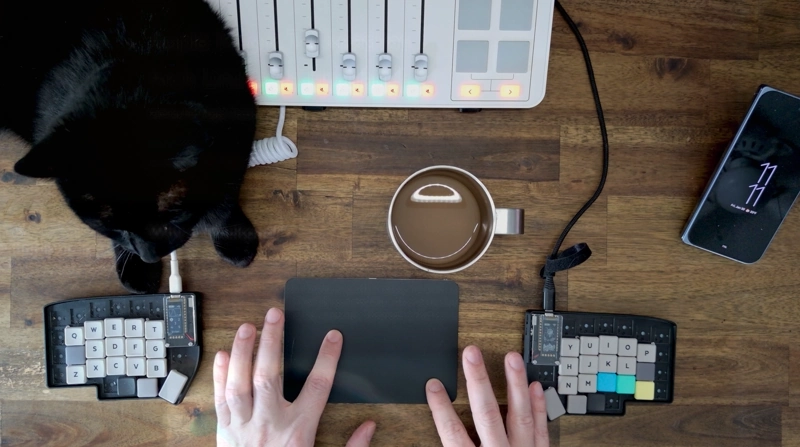
My goal is to use my keyboard for as much as possible. Tiling window navigation in Hyprland, Neovim motions, keybinds for everything. But you’ll always need some kind of pointer for GUIs. I’ve been switching between a Kensington trackball and various mice for years, and no matter what configuration I tried, the trackball still caused pain and discomfort.
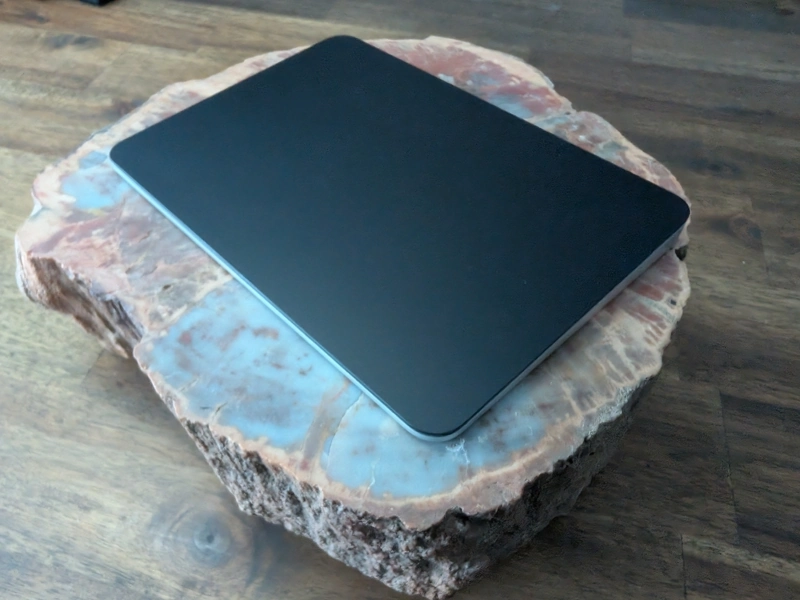
This is really just an excuse to show off my sweet stone tree.
The Magic Trackpad turned out to be the perfect middle ground. I’m a Linux nerd who wants to use and make open and free software, but I also appreciate good hardware. Apple trackpads have their reputation for a reason.
Finding Resources
The Arch Wiki is always the place to start. Beyond that, I found some old forum posts and YouTube videos, but there weren’t great resources online for getting full gesture support working on Hyprland specifically. The forum posts I found were years old and hardware support has come a long way since then. But you still have to know what you’re doing to troubleshoot, and that’s why Arch Linux is considered advanced. If you don’t know how to dig into the problem, you’ll find yourself pasting scripts from ChatGPT or forums and that is not where you want to be. Hence this post.
A note to random new Linux users who found this post: read the Arch Wiki, read man pages, and explore the filesystem. Learn about programs like tealdeer. Start the traditional ways, build your foundational knowledge, then start asking chatbots questions.
The Pairing Problem
I never hooked up the trackpad with a cable. I was able to get it fully working over Bluetooth only.
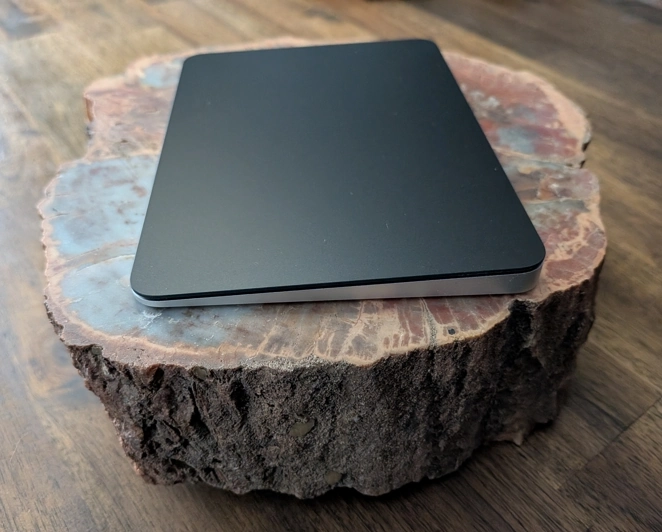
My first attempt was using HyprPanel’s bluetooth menu. The trackpad appeared, I clicked connect, I used the trust device icon and established what looked like trust. It was not.
It would not work at all until it was bonded. The trust command in bluetoothctl is
what creates a proper bonded connection, and for some reason HyprPanel would not do this.
I admit I might have been able to solve this and fix HyprPanel, but it was already on my shitlist for being slow and crashing. Once I realized it was hiding info from me and not working, I binned it real quick.
The fix is using bluetoothctl directly.
Proper Bluetooth Pairing
Turn on the trackpad. There’s no explicit pairing mode or blinking light on the USB-C model, you just turn it on and it’s discoverable. I’m not sure how this would work if you paired it with a Mac first and then tried to pair with Linux.
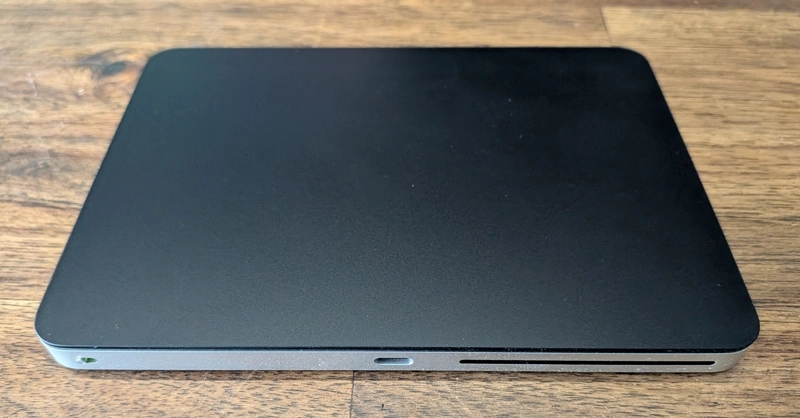
I plan on using this with multiple machines. I have a hunch that some more bash scripting is in my future.
With the trackpad off:
bluetoothctlThis will start an interactive CLI for bluetooth device management. You will probably need to run these commands:
power on
agent on
default-agent
scan on
Turn on the trackpad and you should see the trackpad appear:
[NEW] Device AA:BB:CC:DD:EE:FF Apple Inc. Magic Trackpad
Now the key part - pair, trust, and connect:
pair AA:BB:CC:DD:EE:FF
trust AA:BB:CC:DD:EE:FF
connect AA:BB:CC:DD:EE:FF
This should be obvious, but replace the MAC address with your trackpad’s.
The trust command is what creates a proper bonded connection. Without it, you’ll keep
having issues.
scan off
exit
Adding Gestures
At this point the trackpad works as a pointer, but no gestures. For that we need libinput-gestures.
Here’s what I configured:
- 3-finger swipe left/right → switch workspaces
- 3-finger swipe up/down → toggle scratchpad terminal
- 4-finger swipe up → fullscreen
- 4-finger swipe down → toggle floating
- 2-finger pinch in/out → volume control
I didn’t have to configure:
- 2-finger scrolling → worked out of the box
yay -S libinput-gestures
sudo usermod -aG input $USER
Log out and back in for the group change to take effect.
Gesture Configuration
Create your gesture config:
swipe_threshold 30

# 3-finger workspace switching
gesture swipe left 3 hyprctl dispatch workspace +1
gesture swipe right 3 hyprctl dispatch workspace -1
gesture swipe up 3 hyprctl dispatch togglespecialworkspace magic
gesture swipe down 3 hyprctl dispatch togglespecialworkspace magic

# 4-finger window management
gesture swipe up 4 hyprctl dispatch fullscreen 0
gesture swipe down 4 hyprctl dispatch togglefloating

# Pinch for volume
gesture pinch in 2 hyprctl dispatch exec "wpctl set-volume @DEFAULT_AUDIO_SINK@ 5%-"
gesture pinch out 2 hyprctl dispatch exec "wpctl set-volume @DEFAULT_AUDIO_SINK@ 5%+"
Enable the service:
systemctl --user enable --now libinput-gesturesThe Sleep Problem
Everything worked until I put my computer to sleep. After waking, gestures stopped working. The trackpad moved the cursor, but swipes did nothing.
The gestures service loses its connection to the input device after sleep. The fix is a systemd sleep hook that restarts the service on wake.
Create a script in /usr/lib/systemd/system-sleep/ that looks like this:
#!/bin/bash
case "$1" in
    post)
        sleep 2
        /usr/bin/runuser -u YOUR_USERNAME -- systemctl --user restart libinput-gestures
        ;;
esac
Bash syntax will always look broken to me.
The post case runs after the system wakes. The short sleep gives the Bluetooth
connection time to re-establish before restarting the gestures service. Make the script
executable and gestures will automatically restart after every wake.
Hyprland Device Config
Hyprland lets you configure per-device input settings. First, find your device name:
hyprctl devicesLook for something like apple-inc.-magic-trackpad-usb-c in the output. Then add a device
block to your Hyprland config:
device {
    name = apple-inc.-magic-trackpad-usb-c
    natural_scroll = false
    disable_while_typing = true
    scroll_factor = 0.4
    clickfinger_behavior = true
}
- scroll_factor controls scroll speed (default is 1.0, I found 0.4 more comfortable)
- clickfinger_behavior enables macOS-style multi-finger clicking (two fingers = right click, three = middle)
Why libinput-gestures?
Hyprland has built-in workspace swipe gestures, but they animate smoothly between
workspaces as you drag. I wanted discrete switching - swipe and it snaps to the next
workspace. libinput-gestures fires hyprctl dispatch commands, which gives you that
instant snap behavior.
If you prefer the smooth animated swiping, you can skip libinput-gestures entirely and enable the built-in gestures instead:
gestures {
    workspace_swipe = true
    workspace_swipe_fingers = 3
    workspace_swipe_distance = 300
    workspace_swipe_invert = true
}
Dialing It In
One of the best parts of Apple products is that they come finely tuned. You don’t have to learn about settings. Linux is for the people who want to learn about settings.
The trackpad didn’t feel great out of the box. I had to dial in my scroll speed in Firefox and tweak general scroll settings to match my preferences. This is normal for Linux, and honestly part of why I use it.
This whole journey also led me to replace HyprPanel with a Quickshell bar. I don’t want to go full Quickshell yet, but the bar is already way better. It’s lighter weight and doesn’t need to restart to accept new themes. More on that later.
Summary
- Pair with
bluetoothctl- the GUI doesn’t create bonded connections - Add a per-device config in Hyprland to tune scroll speed and behavior
- Install
libinput-gesturesand add yourself to theinputgroup - Configure gestures for your window manager
- Add a sleep hook to fix post-wake issues
The Magic Trackpad is genuinely nice hardware, and once configured, it works great on Linux. My dotfiles have the full gesture config if you want to see it.
Update: USB Charging and Sleep Issues
After a week of solid Bluetooth operation, I plugged the trackpad into my computer to charge. After that, it stopped reconnecting after sleep.
The fix was updating the sleep hook to explicitly reconnect Bluetooth before restarting the gestures service:
#!/bin/bash
case "$1" in
    post)
        sleep 2
        bluetoothctl connect AA:BB:CC:DD:EE:FF
        sleep 3
        /usr/bin/runuser -u YOUR_USERNAME -- systemctl --user restart libinput-gestures
        ;;
esac
I also discovered that the trackpad has a different device name when connected
over USB vs Bluetooth. Over Bluetooth it shows up as apple-inc.-magic-trackpad-usb-c but over USB it’s just apple-inc.-magic-trackpad. If you want gestures and
right-click to work while wired, add a second device block with the USB name.
Comments