TL;DR: RSI forced me to rethink how I type. After months of experimentation, I landed on a 36-key split keyboard with homerow mods. Fewer keys means less finger travel, and once you internalize the layout, typing feels incredible. I highly recommend buying from Beekeeb if you’re looking for a split keyboard. Top of my purchase list right now is a wireless Toucan to pair with my wired Piantor. With enough interest, I might buy one and write a comparison between ZMK and QMK setups.
I’m trying to thread a needle here: writing something that people both in and out of the keyboard rabbit hole can enjoy. If you’re already deep in it, hopefully there’s something useful. If you’re not, hopefully this doesn’t scare you off.
As a UI/UX focused designer and developer, thinking through all of this has been a fascinating experience. Keyboards are how we interface with computers. It’s only natural to approach the problem like any other UX challenge: reduce friction, minimize movement, and make the common paths effortless.
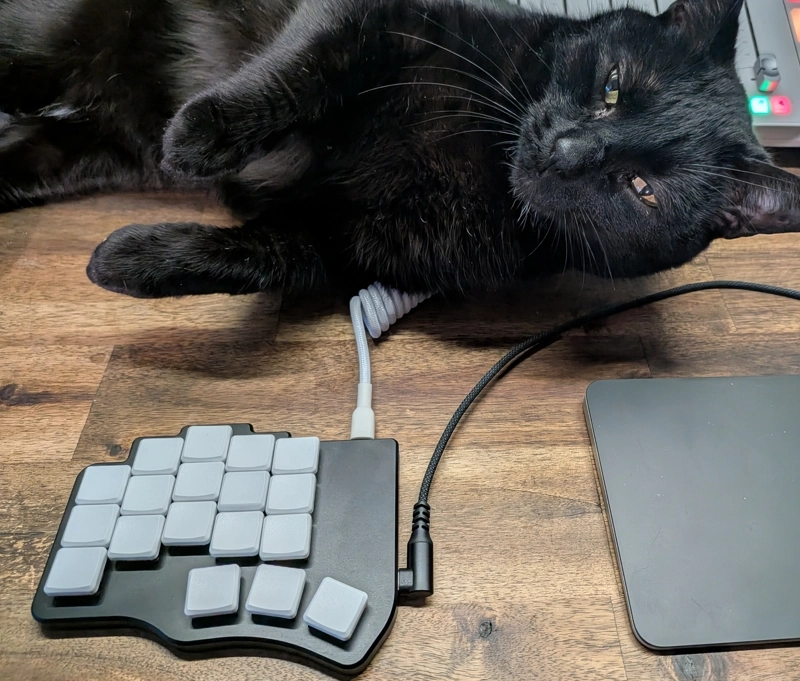
The Breaking Point
I spent years on the road as a professional drummer. Tight forearms have been part of my life for as long as I can remember. Back then, any change to my arms could hurt my playing, so I avoided messing with them. Touring taught me that I had to sleep with my wrists in the correct position or it could ruin a performance. That’s still true. If I sleep with my wrists tucked, it can wreck my next day.
I’ve ignored the tightness for years because I didn’t want to hurt myself by stretching something wrong. That bit me. One morning I woke up and my arms didn’t work. I’d felt it building for years, but this was like the bad sleep thing times 100. I could barely lift my arms, and I really had to work.
I’m not a doctor and I’m not going to give medical advice, but I’m pretty sure I figured out my main problem: resting my wrists on the desk while typing. It worked for years until it didn’t. Whatever happened, it lit a fire under me.
Don’t be like me. Stretching and preventative ergonomics is a much better option than hitting a wall and scrambling to fix things. If you’re reading this and your arms feel fine, start stretching now. Don’t wait until they don’t.
The Moonlander Wasn’t Enough
I’d been using a Moonlander keyboard for years. It’s a good board with a nice configurator, but it’s missing the things required to do really good homerow mods. When the RSI hit hard, I ordered a Lily58 immediately, thinking the extra keys compared to something like a Corne would be put to good use. But I quickly realized it wasn’t the right board either. The thumb cluster position didn’t work for my hand size, and a few of those keys were straight up unhittable.
Once I got a taste of homerow mods, ZMK, and how well combos work (my escape key is a combo now), my brain started moving. I like this kind of challenge. I like doing things that aren’t normal or that seem difficult.
Why Fewer Keys
I have big hands. You’d think a tiny keyboard would be counterintuitive. Nope.
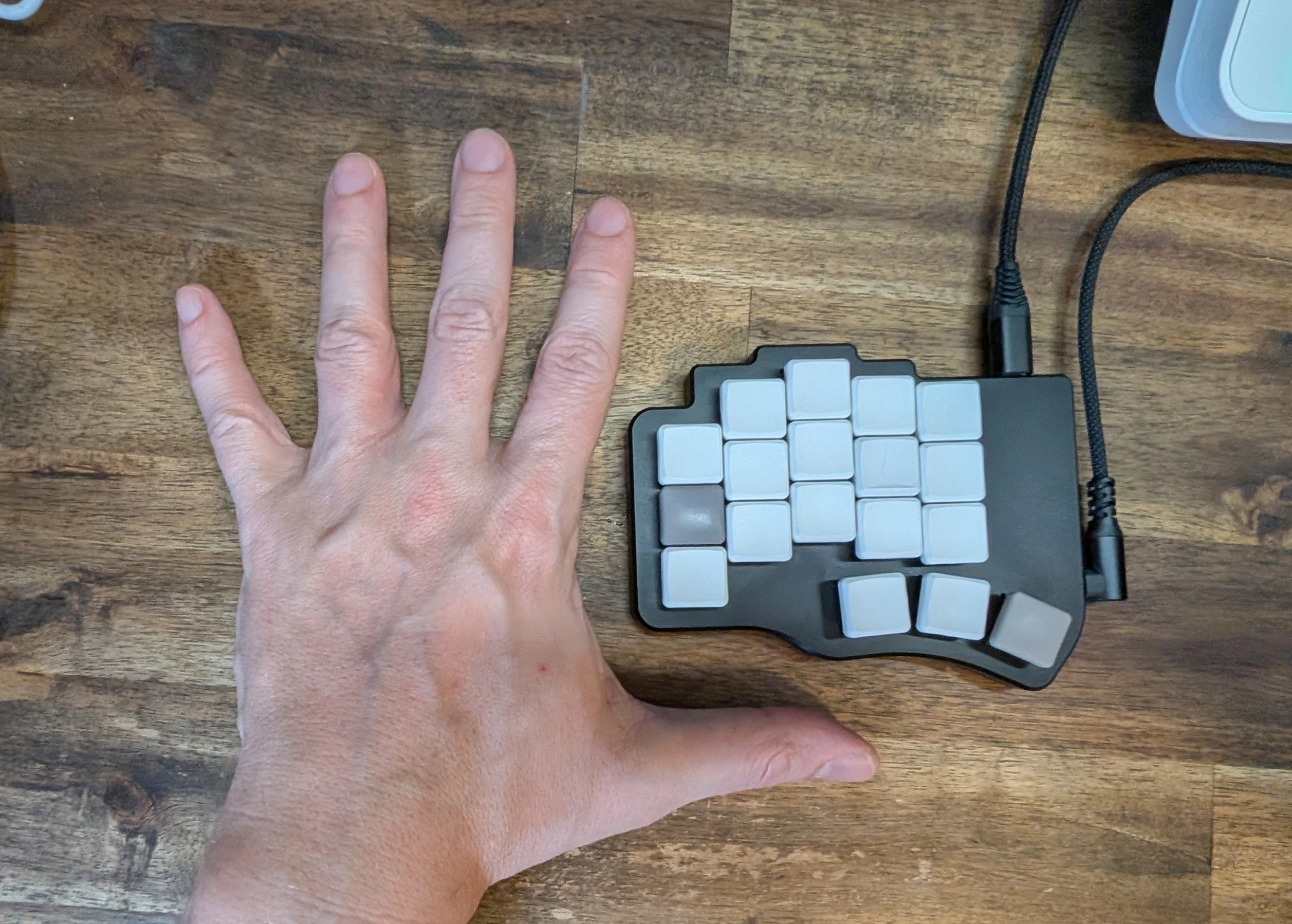
I spent two months with a Lily58 that only had 36 keys active on it. I reduced the keys because it was literally painful to use more. Reaching for anything outside the home position caused strain. But something unexpected happened: I fell in love with it.
Once your fingers only have to move one key in any direction, and you start truly touch typing, the weirdest thing happens. The keyboard starts to feel huge. You know exactly where everything is because there’s nowhere else it could be.
I also found that I like having homing or special keys under my pinkies. Even though they’re relegated to just two keys now instead of however many on a full layout, it really helps with touch typing. Those pinky columns become reliable anchors.
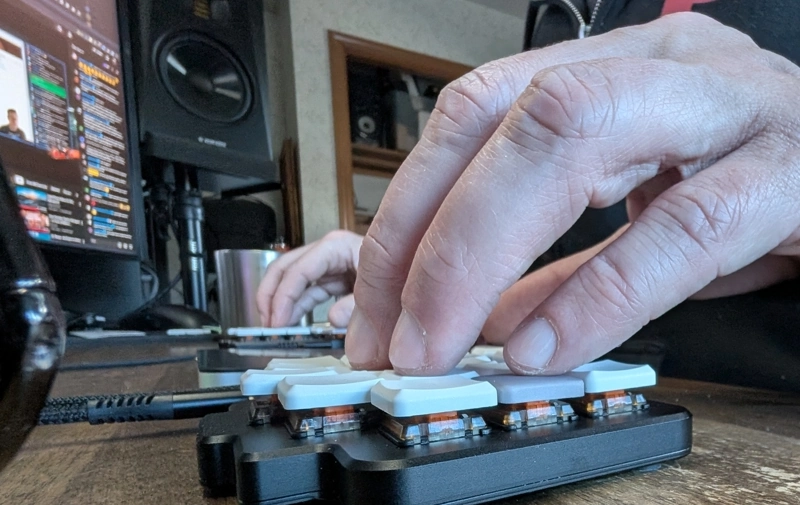
Typing symbols now has the same satisfying flow as punching numbers on a classic 10-key. That’s when I knew I wasn’t going back.
The Piantor
After those two months proving to myself that 36 keys was not only doable but actually better, I went looking for a proper 36-key board. Enter the Piantor Pro.
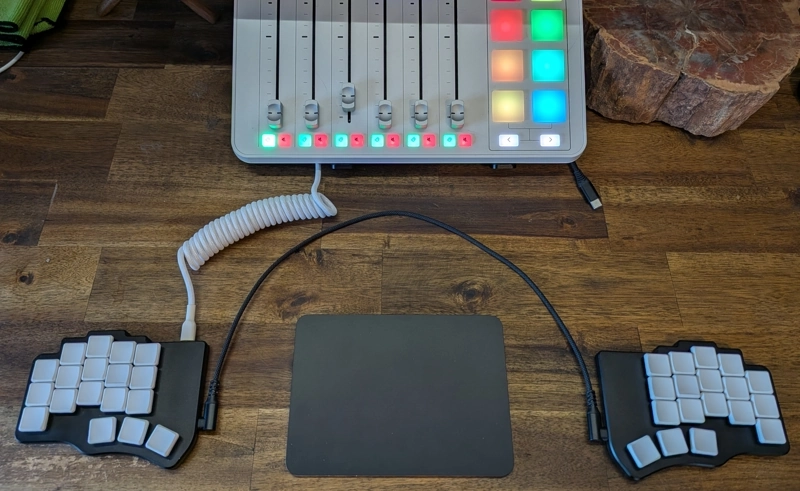
What I wanted:
- A fully metal enclosure. Something with heft.
- Clean aesthetics with the electronics hidden away
- QMK firmware (I’d been using ZMK on the Lily58 and wanted to compare)
I got Sunset Tactile Choc switches with this build as one last chance for tactile. I like them, but I’m still not sure if I like them more than the Silent Twilights. The hotswap board means I can keep experimenting.
The QMK vs ZMK decision was easy for this build. I wanted a hardwired keyboard to start, knowing I’d eventually invest in a wireless split to complement my desk setup at home. This board lives plugged into my desktop anyway. My next board will probably be a ZMK wireless build, something like the Toucan. I might write a ZMK vs QMK comparison at some point.
I also bought some Weteor 3w6 PCBs and tried my hand at soldering them myself. I kept getting stuck and realized I needed a rock-solid keyboard as my daily driver before I could experiment with builds that might not work.
Beekeeb came highly recommended, and I agree completely. The build quality is excellent, the shipping was top notch, and everything included was exactly what I needed. Leo even sent me a picture of the keyboard when he finished soldering it. That’s the kind of care you want from someone building your daily driver.
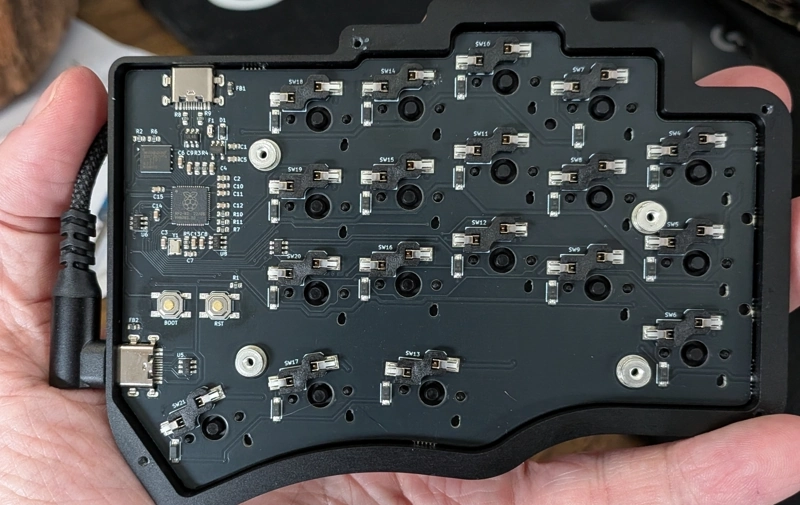
If you’re looking for a split keyboard, go buy one from them and tell them you heard about them through this blog post. Maybe I’ll get to write more keyboard content.
Homerow Mods
I’m not going to write a homerow mods tutorial. Better people than me have already done that. If you don’t know what homerow mods are, watch this video first.
The resources that got me here:
- urob’s ZMK Timeless Homerow Mods - the original post that started it all
- Timeless Homerow Mods ported to QMK by pgetreuer - this is what my config is based on
- The Endgame Keyboard by Joshua Blais - a good overview of the Chocofi and the small keyboard philosophy
The short version: homerow mods let you use your home row keys as modifiers when held.
Hold A, it’s GUI. Hold F, it’s Shift. Tap them and they’re just letters. This
means your fingers never leave the home row to hit Ctrl, Alt, Shift, or Super.
The catch is getting the timing right. Too aggressive and you get false triggers while typing fast. Too conservative and modifiers feel laggy.
Chordal Hold
The “timeless” configuration uses something called Chordal Hold. The idea is simple: if you roll two keys on the same hand quickly in succession, it’s almost always a tap. You’re rolling through a word. If you press keys on opposite hands, you’re probably trying to use a modifier.
This handles most false triggers. Typing “fast” won’t accidentally fire Shift because F and A are on the same hand. The firmware knows you’re just typing.
The Cross-Hand Problem
But what about words like “do”? D is Ctrl on my layout, and O is on the opposite
hand. If I type “do” quickly, will I get Ctrl + O?
This is where tapping term comes in. Even with chordal hold, the firmware still waits a
bit before committing to a hold. I have my Ctrl key set to 250ms. If I release the D before that window closes, it’s a tap. Typing “do” at normal speed never triggers Ctrl + O because I’m not holding D long enough.
The tradeoff is that intentional Ctrl presses feel slightly delayed. You learn to commit
to the hold. It becomes muscle memory.
The Learning Curve
It takes a few weeks before it feels natural. You will make mistakes. You’ll accidentally trigger modifiers, or you’ll fail to trigger them when you want them. This is normal. Your brain is rewiring decades of muscle memory.
One thing you have to internalize: all modifier combos need to be cross-handed. Left hand mod, right hand key, or vice versa. You’d be surprised how fast you pick this up. It becomes second nature.
I used to hit Shift and T with just my left hand. That doesn’t work anymore.
It’s a small adjustment, but it’s the kind of thing you don’t notice until you’re forced to.
Switching to a split keyboard also reveals weird things about how you type. You’ll discover fingers crossing the center line, keys you’ve been hitting with the wrong hand for years, all sorts of quirks. It’s a fascinating process learning how your hands actually work.
I highly recommend keybr.com as a daily practice tool. It probes for weaknesses in your typing and drills against them. Weak pinky? It will find it. Struggling with a specific letter combination? It will hammer that until you improve.
After those first few weeks, something clicks. Now I can’t go back.
My Config Constants
My config is based mostly on pgetreuer’s QMK port of urob’s timeless homerow mods.
For the curious, here’s what I landed on in my config.h:
#define TAPPING_TERM 250
#define TAPPING_TERM_PER_KEY
#define FLOW_TAP_TERM_PER_KEY
#define PERMISSIVE_HOLD
#define FLOW_TAP_TERM 100
#define CHORDAL_HOLD
#define SPECULATIVE_HOLD

#define COMBO_TERM 75
#define COMBO_ONLY_FROM_LAYER 0
#define COMBO_SHOULD_TRIGGER
Quick breakdown:
TAPPING_TERM 250- base timeout for tap vs hold (250ms)PERMISSIVE_HOLD- nested keypress triggers hold behaviorFLOW_TAP_TERM 100- if you pressed a key within 100ms, lean toward tapCHORDAL_HOLD- same-hand rolls are taps, opposite-hand is holdSPECULATIVE_HOLD- apply modifier immediately (helps withShift+ click)COMBO_TERM 75- time window for hitting combo keys (slightly longer than default 50ms)COMBO_ONLY_FROM_LAYER 0- combos check against base layer, so they work across all layers
The _PER_KEY flags let me tune individual keys. My Shift keys (F and J) have a
shorter tapping term of 175ms so they feel snappier. My Ctrl keys have a short flow tap
term to prevent accidental Ctrl + O when typing “do” quickly.
The Layout
This is the best keymap I’ve come up with so far. I looked at a ton of other layouts before landing here, and I’m still tweaking it. The key is not adding too much too quickly.
QMK keyboards can be configured with GUI tools like Vial, but I
chose to edit my keymap directly in C. It gives me full control over the firmware and lets
me use features that GUI tools don’t always expose. When I make changes, I run a build.sh script that compiles the firmware and regenerates my keymap diagram using keymap-drawer. Updating the keyboard is as
easy as dragging the compiled file from one window to another.
I also threw together a script so I can hit Super + K at any time to see my up-to-date
keymap. This is just another example of the hobbyist keyboard world being insane and
having insane tooling.
Want a full writeup on my firmware and automation setup? Comment on Bluesky and let me know.
Symbol Layer
The symbol layer works really well. I grouped things logically:
`,",'together for quotes+,-,_together for math and naming- Logical operators (
<,>,=,|,&) on the left hand - Brackets and braces (
(),[],{}) on the right hand
Once you internalize the groupings, typing code feels fluid. You’re not hunting for symbols anymore.
Nav Layer
The nav layer gives me vim-style arrow keys on H, J, K, L. The best part? This
works everywhere. GRUB menu? Vim keys. UEFI settings? Vim keys. Places untouched by mere
software now bend to my will.
Holding G with my index finger unlocks the nav layer. Combined with homerow mods, I get
emacs/unix-style word navigation too. Ctrl + arrow jumps by word. Add Shift to select.
All the holds happen on my left hand, all the movement on my right.
It’s the kind of thing that feels clunky to describe but becomes instant muscle memory.
The Secret Space Combo
One of the best and most unexpectedly awesome things I found: a Space combo on the right
hand (J + K).
It sounds minor but it feels incredible in practice. The real magic is when I’m holding
down my symbol layer key (Backspace on the left thumb) while typing symbols with my
right hand. Instead of releasing the layer key to hit space on my thumb, I just tap J + K and keep going. Flow state maintained.
On Customization
I don’t know how people customize fully-keyed keyboards like the Glove80. That’s coming from someone who used a Moonlander for three years. More keys means more decisions, more muscle memory to build, more things to get wrong. With 36 keys, every key matters and every choice is intentional. There’s nowhere to hide bad habits.
Keyboard-Driven Workflow
This might mean something to the initiated, but let me walk through it for everyone else.
I use Hyprland, a tiling window manager on Linux. Multiple monitors, multiple workspaces, everything controlled by keyboard. You’d think I’d need a lot of keys for switching workspaces, moving windows around, and launching apps. Nope. 36 keys is plenty.
Here’s the trick: my homerow mods mean Super is on A, Alt is on S, Ctrl is on D, and Shift is on F. The right hand mirrors this. So all my modifiers are right
there on the home row.
All of these keybinds are cross-handed. Modifiers on the left, action key on the right (or vice versa). This means Chordal Hold always recognizes them as intentional modifier usage, not typing. No false triggers, no timing games.
Switching Workspaces
I have 10 workspaces mapped to the top row. Super + Alt + top row key = switch to that
workspace. I use mnemonics: left hand keys (Q, W, E, R, T) control workspaces on
my left (main) monitor, right hand keys (Y, U, I, O, P) control workspaces on my
right monitor. Right keyboard, right screen.
Moving Windows to Workspaces
Add Ctrl to send the current window there instead of just switching.
Three modifiers sounds insane on a normal keyboard. On homerow mods, it’s just holding ;, L, K with my right hand and tapping E with my left. Completely comfortable.
Window Focus and Movement
Moving focus around uses Ctrl + vim keys. Left hand Ctrl (D), right hand vim keys:
Moving windows adds Super + Shift. Left hand mods (A + F), right hand vim keys:
The same pattern works inside Neovim for split navigation. Ctrl + Alt + vim keys:
Close Window
This one is intentionally hard to hit: Super + Alt + Backspace. Right hand mods,
left thumb backspace. I can’t accidentally trigger this while typing.
Quick Launchers
Right hand Super (;), left hand action key:
A non-warmed up clip from practice on keybr.com. Once I get warmed up and have flow going, I’m much faster and don’t feel slowed down by the keyboard at all.
Resources
YouTube channels that got me here:
- Ben Frain - great practical content on small keyboards
- Ben Vallack - deep dives into layouts and ergonomics
- If Coding Were Natural - keyboard philosophy and workflow
If you’re making split keyboard content, I’ve probably watched your channel.
Technical resources:
- urob’s ZMK Timeless Homerow Mods
- Timeless Homerow Mods ported to QMK by pgetreuer
- QMK Firmware - open source keyboard firmware
- ZMK Firmware - wireless-focused keyboard firmware
- QMK Documentation
- Beekeeb - where I got my Piantor Pro
This is part of my ongoing RSI journey. I also wrote about getting the Apple Magic Trackpad working on Linux as part of the same effort to stop hurting myself while working.
Comments